Stop your laptop computer from consuming your data bundle today
Today, I am going to show you how to stop your laptop computer from draining your data
Have you ever wondered why your data suddenly disappears whenever you connect your computer to the internet? It makes you feel sad and dejected
The thing is that Windows is configured to update your computer whenever you connect to the internet without your notice
Steps to stop Windows from draining your data bundle
1. Set your network to metered
. Go to settings, Network & internet, wi-fi (or Ethernet), click your network set it as a metered connection.
This limits background updates, OneDrive syncing, and some app downloads.
2. Pause or schedule Windows updates
Go to Settings, Windows Update, pause updates (up to 5 weeks).
Or set active hours so updates don’t download during your browsing time.
For more control (if you are on the Pro version), you can use Group Policy
Press Win + R, type gpedit.msc.
Navigate to:
Computer configuration, administrative Templates, Windows components, Windows Update manage end user experience.
. Configure “Notify for download and auto install”.
3. Turn off Background Apps
Settings Apps —installed apps, click an app—advanced options set Background Apps permission to Never.
4. Disable OneDrive Auto-Sync
. Right-click OneDrive icon in taskbar – Settings – uncheck Start OneDrive automatically when I sign in.
. Pause syncing when not needed.
5. Limit Microsoft Auto-Updates
. Open Microsoft Store profile, App settings, turn off App updates
6. Disable Telemetry & Diagnostic Data

Settings—Privacy & security – Diagnostics & feedback.
Set Diagnostic data to Required only.
Turn off Tailored experiences.
7. Use Data Saver in Browsers
. Chrome/Edge/Opera have Data Saver or Lite Mode
. Block autoplay videos and ads with extensions.
8. optional (Pro users) -use local Group policy for More Control
. Block automatic driver updates:
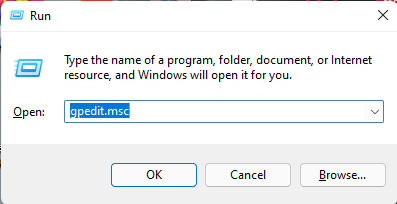
Press Win + R and type gpedit.msc hit enter
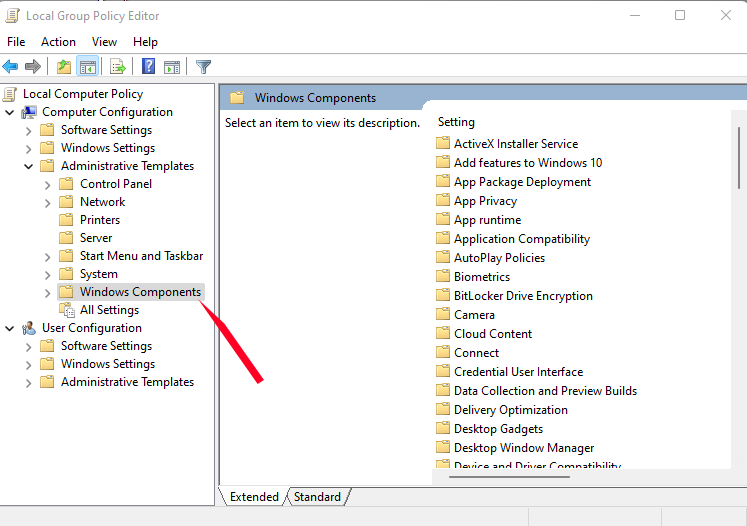
Go to the computer configuration and click Administrative Templates

Click Windows component
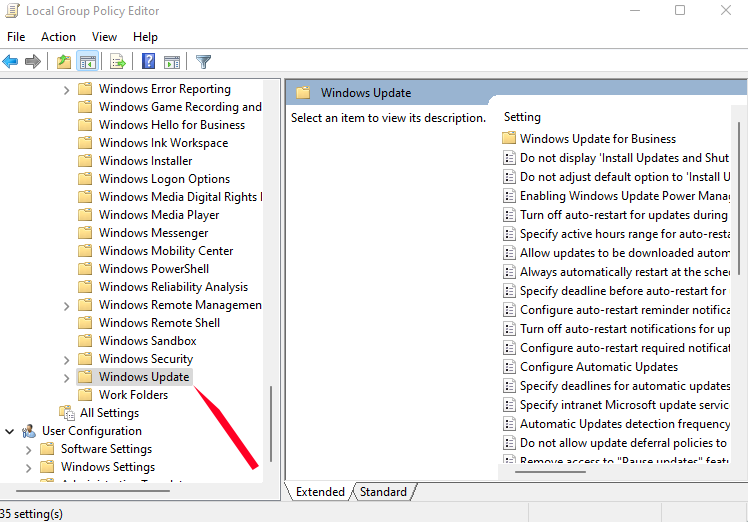
Click Windows Update
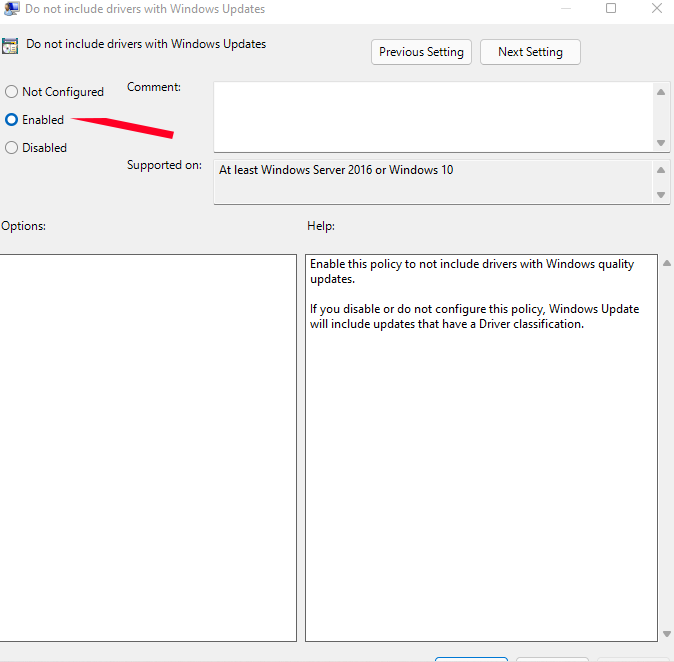
Click, do not include drivers with Windows updates.
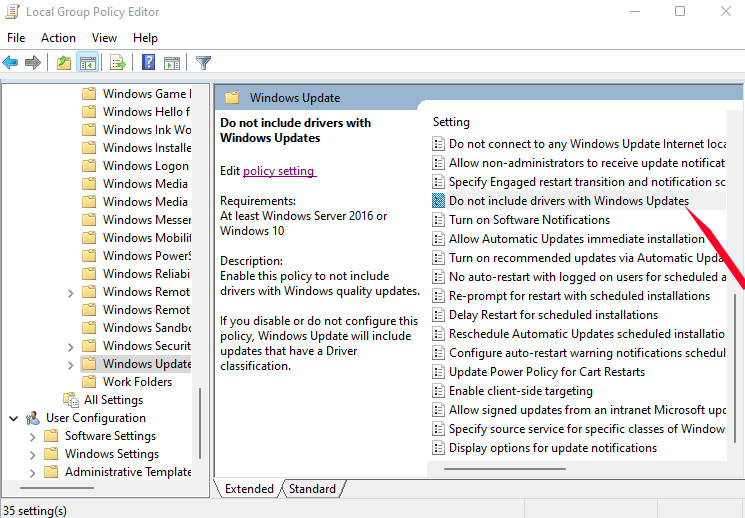
Click the policy settings
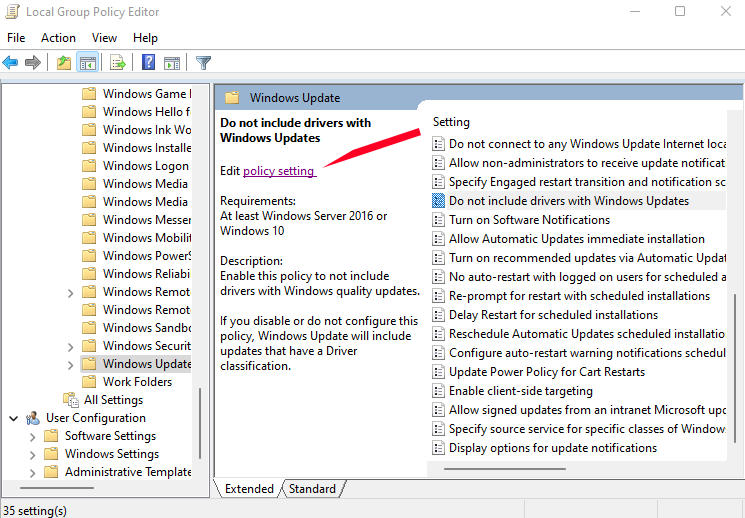
Click enable. Apply and save