
How to mount a stubborn iso file
7 major ways to mount an iso file on your pc
If you can’t mount an ISO file on your Windows 10/ 11 Pro, the issue is usually caused by one of these common problems

1. File association or mounting service problem
Windows uses File Explorer’s built-in ISO mounter. If the association is broken, mounting won’t work.
How to fix it:
1. Right-click the ISO file → select Open with → Choose another app.
2. Select Windows Explorer and tick Always use this app to open .iso files.
3. Try right-clicking the ISO again → Mount.
If “Mount” doesn’t appear:
Highlight the ISO → click Manage → Mount from the File Explorer top bar.
2. Windows image file disk service is not running
The service responsible for mounting may be disabled.
How to fix it:
1. Press Win + R, type services.msc, press Enter.
2. Scroll to “Virtual Disk” service.
3. Right-click → Properties → set Startup type to Automatic → click Start → OK.
4. Try mounting the ISO again.
3. The ISO file is corrupted or incomplete
If the ISO file didn’t download completely or got damaged, it can’t be mounted.
How to fix it:
Check the file size vs the original source size.
Try opening it with software like WinRAR or 7-Zip — if it fails, redownload it.
4. File located in a restricted or compressed folder
Mounting can fail if the ISO is inside:
A compressed folder (e.g., .zip or .rar)
A network drive or OneDrive path that’s not synced
How to fix it: Move the ISO to a local folder, e.g., C:\Users\<YourName>\Downloads, then try mounting again.
5. Third-party tools interfering
Programs like Daemon Tools, PowerISO, or Alcohol 120% can override Windows’ default mounter.
How to fix it:
Temporarily uninstall or disable such programs.
Restart your computer and try again.
6. Try mounting via PowerShell
If File Explorer fails, use this command:
1. Press Win + X → select Windows Terminal (Admin)
2. Run:
Mount-DiskImage -ImagePath “C:\your folder\file.iso”
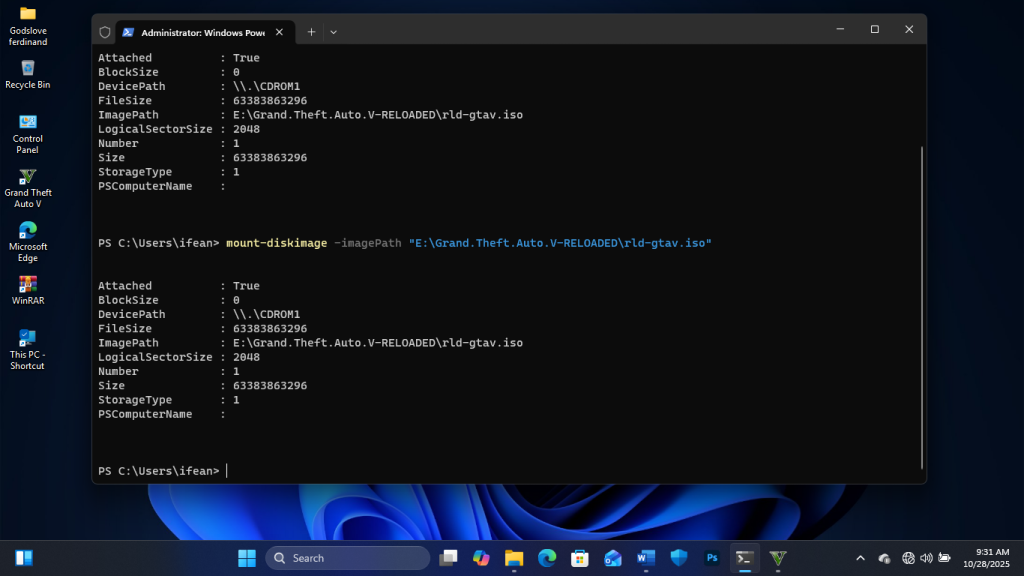
3. Check This PC — the ISO should appear as a new drive.
7. System corruption
If none of the above helps:
Run a quick system repair:
sfc /scannow
and
DISM /Online /Cleanup-Image /RestoreHealth
Then restart your PC and try again.