
Let’s figure out why your PC keeps crashing — that can happen for several different reasons. To help you correctly, I’ll explain the main causes and how to fix each one
I have been receiving messages from people on why their PC is always entering a crashing mode
1. Overheating
Signs:

- The laptop becomes hot quickly
- Fans spin loudly
- Shuts down suddenly
Fix:
- Clean the air vents and fans (use compressed air if possible).
- Use the laptop on a hard surface, not a bed or lap
- Check Task Manager → “Performance” tab → look for CPU usage and temperature (if shown).
- If overheating continues, you might need to reapply thermal paste or replace the fan.
2. Corrupt Windows or Drivers
Signs:
- Crashes during startup or updates
- Blue screen (BSOD) errors
Fix:
- Boot into Safe Mode → uninstall recently added drivers or apps.
- Run:
sfc /scannow
In Command Prompt (as Administrator) to fix system files.
- Update or reinstall your drivers (especially graphics and network drivers).
- If the problem continues, reinstall Windows cleanly.
3. Faulty RAM or Hard Drive
Signs:
- Random freezes or blue screens
- “Memory Management” or “Disk” errors
Fix:
- Run Memory Diagnostic Tool:
- Press Windows + R, type mdsched.exe, and restart to test RAM.
- Run a disk check:
chkdsk C: /f /r
- Replace the HDD/SSD if errors are found.
4. Power Supply or Battery Problems
Signs:
- Laptop crashes when charging or when unplugged
- Battery percentage jumps
Fix:
- Try using the laptop without the battery (if removable) while plugged in.
- Test with another compatible charger.
- Replace the battery if it’s old or swollen.
5. Malware or Corrupted Software
Fix:
- Run a full scan using Windows Defender or another trusted antivirus.
- Use MSConfig to disable unknown startup apps.
- Remove any suspicious software.
7 Best Laptop & Phone Accessories Every Nigerian Student Needs (2024/2025 Guide)
6. Hardware Fault (Motherboard, GPU, etc.)
If all else fails and the laptop still crashes, the motherboard or GPU may be failing. In this case, a technician should check the hardware components.
How does it crash?
For example:
- Does it show a blue screen (BSOD) with an error message?
- Does it just freeze or restart suddenly?
- Does it happen when you open certain apps (like games or browsers)?
Lemme pinpoint the exact cause and fix.
If Blue Screen (BSOD) with an error message
A Blue Screen of Death (BSOD) means Windows encountered a serious error — often caused by hardware failure, bad drivers, or corrupted system files.
Let’s go step-by-step to fix it
Step 1: Find the Error Code
When the blue screen appears, it usually shows something like:
“Your PC ran into a problem…”
Stop Code: MEMORY_MANAGEMENT
or IRQL_NOT_LESS_OR_EQUAL, etc.
Please tell me the exact stop code you see — that’s the key to identifying the root cause.
If the screen disappears too quickly, you can still check it later:
- Press Windows + R → type:
- eventvwr.msc
- Go to Windows Logs → System
- Look for entries labeled “BugCheck” or “Critical” near the time of the crash.
- Note the stop code (e.g., 0x0000007E, 0x00000050, etc.)
Step 2: Run System File and Disk Checks
Open Command Prompt (Admin) and run these one by one:
sfc /scannow
This checks and repairs missing or damaged Windows files.
Then:
chkdsk C: /f /r
Press Y to schedule and restart the system — it will check your disk for errors.
Step 3: Update or Roll Back Drivers
- Press Windows + X → Device Manager
- Expand these sections:
- Display adapters
- Network adapters
- Sound, video, and game controllers
- Right-click → “Update driver” for each.
- If BSODs started after a driver update, choose “Roll back driver” instead.
Step 4: Check RAM (Memory)
Faulty RAM is a top cause of BSODs.
- Press Windows + R, type:
- mdsched.exe
- Choose Restart now and check for problems.
→ Windows will test your memory and show if it finds errors.
If errors appear, you may need to replace the RAM module.
Step 5: Disable Fast Startup
Sometimes Fast Startup causes instability.
- Go to Control Panel → Power Options → Choose what power buttons do
- Click Change settings that are currently unavailable
- Uncheck Turn on fast startup → Save.
Step 6: Scan for Malware
Use Windows Security → Full Scan
or Windows Defender Offline Scan (runs before Windows loads).
Step 7: If Crashes Continue
If none of the above helps:
- Run a clean Windows reinstall (after backing up your files).
- Or, use a program like BlueScreenView (free) to analyze the crash dump file at:
- C:\Windows\Minidump
It will show which driver or file caused the BSOD.
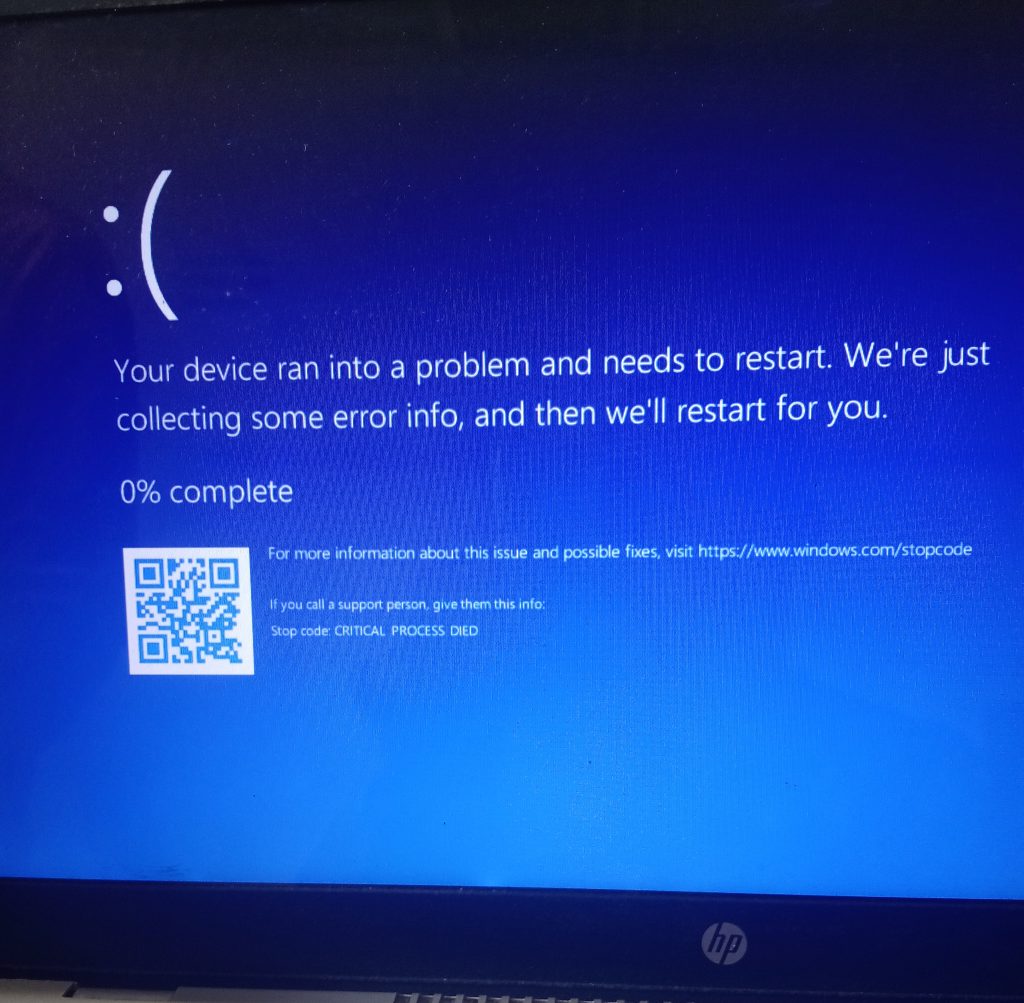
If the stop code or error message from your blue screen is “CRITICAL_PROCESS_DIED”
This is the exact way to fix it. Top of Form
Bottom of Form
The “CRITICAL_PROCESS_DIED” blue screen means Windows lost a process that’s essential to keep the system running — usually because of:
- corrupt system files,
- bad drivers,
- a failing hard drive,
- or sometimes RAM errors.
Let’s fix it step by step
STEP 1 — Run System File Checker (SFC)
This repair corrupted or missing system files.
- Press Windows + X → Terminal (Admin) or Command Prompt (Admin)
- Type and press Enter:
- sfc /scannow
- Wait till it reaches 100%.
- If it says “Windows Resource Protection found corrupt files and successfully repaired them”, restart your laptop.
- If it says it couldn’t fix all files, go to Step 2.
STEP 2 — Run DISM Tool
DISM checks Windows image health.
In the same Command Prompt (Admin):
DISM /Online /Cleanup-Image /RestoreHealth
After it finishes (can take a while), run SFC again:
sfc /scannow
Then restart your laptop.
STEP 3 — Check Your Hard Drive
A failing HDD/SSD can cause this BSOD.
Run this in Command Prompt (Admin):
chkdsk C: /f /r
When it asks to schedule on next restart, press Y, then restart the computer.
It will scan and repair bad sectors.
If the scan finds a lot of bad sectors, you should replace the drive soon.
STEP 4 — Test Your RAM
Bad RAM can also cause this error.
- Press Windows + R, type:
- mdsched.exe
- Choose Restart now and check for problems.
→ Let the test complete. If it reports errors, you need new RAM.
STEP 5 — Check Drivers
Outdated or corrupt drivers can kill critical processes.
- Open Device Manager (Windows + X → Device Manager)
- Look for any ⚠️ yellow triangles.
- Right-click → Update driver for:
- Display adapter
- Network adapter
- Storage controllers
- Audio drivers
You can also use HP Support Assistant (preinstalled or from hp.com/support) to automatically update drivers.
STEP 6 — Scan for Malware
Some rootkits or system infections can terminate critical processes.
Run:
- Windows Security → Full Scan
or - Windows Defender Offline Scan (runs before Windows boots).
STEP 7 — If Still Crashing
If the BSOD still appears after all these steps:
- Back up your data.
- Perform a clean reinstall of Windows 11 (delete partitions during setup to start fresh).
That guarantees all corrupted system files and drivers are removed.
Optional Check
You can also view the dump file that shows which file crashed:
- Download BlueScreenView (free from NirSoft).
- Open it and look for the “Caused by Driver” column — it might show something like:
- ntoskrnl.exe
- wininit.exe
- hdd.sys